
Perses Dashboards
Thalamus ships a set of Perses dashboards in examples/perses-dashboards:
| Dashboard | Purpose |
|---|---|
thalamus-slo.json | User-facing latency SLOs (TTFT, TPOT, E2E, ITL), queue depth, endpoints |
thalamus-usage.json | Token volume and request parameters |
thalamus-gpu.json | GPU utilization, memory, and health via DCGM (only with GPU operator installed) |
thalamus-vllm.json | Engine-level debugging: scheduling, prefill/decode, KV cache |
thalamus-llmd.json | Router (EPP) debugging: queueing, prefix routing, payload sizes |
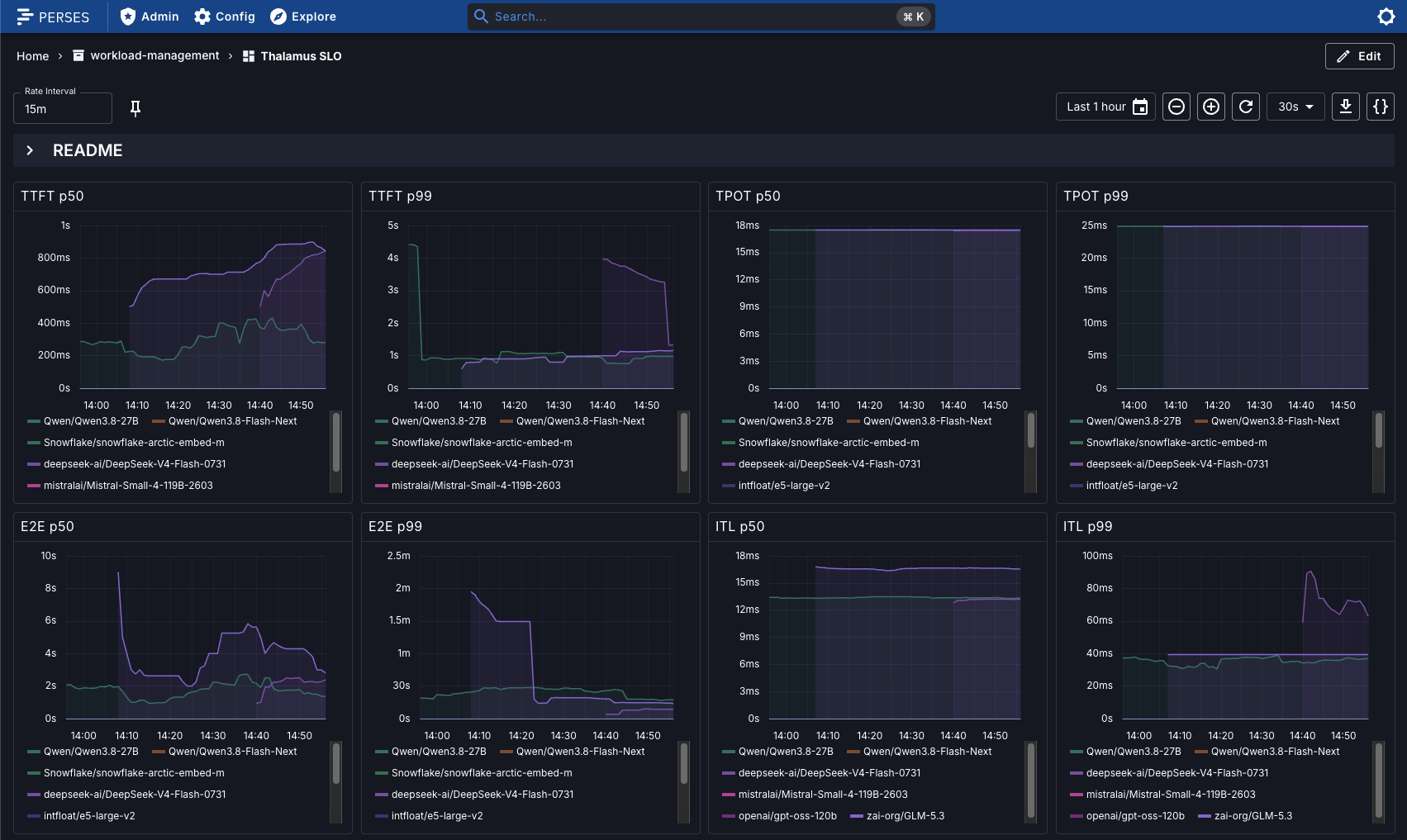
The SLO dashboard: user-facing latency per model (TTFT, TPOT, E2E, ITL), queue depth, and endpoint availability.
Prerequisites
- Prometheus, e.g. through kube-prometheus-stack, which also provides kube-state-metrics (required for some panels).
- Perses with a Prometheus datasource pointing at your Prometheus.
Enable metric scraping
The thalamus chart creates ServiceMonitor/PodMonitor resources for the operator, the vLLM engine, and the endpoint picker, and the bundled agentgateway chart creates monitors for the gateway controller and its proxies. Enable both with values passed to the thalamus release:
Make sure release field matches the namespace where you have deployed Prometheus. In this guide, the Prometheus package is deployed as monitoring release.
# my-cluster.yaml (values for the thalamus release)
monitoring:
  enabled: true
  additionalLabels:
    release: monitoring
agentgateway:
  monitoring:
    enabled: true
    serviceMonitor:
      extraLabels:
release: monitoringhelm upgrade --install thalamus oci://ghcr.io/cobaltcore-dev/charts/thalamus \
--namespace thalamus --wait --reuse-values \
--version 0.0.0-main \
-f my-cluster.yamlLoad the dashboards
You can add all the dashboards manually:
- Run
kubectl port-forward -n <perses-namespace> svc/perses 9090:8080depending on your Perses installation and go tolocalhost:9090or the respective port. - Create the project named
thalamus. - For each dashboard in
examples/perses-dashboards, click "Add dashboard", specity name, click "Edit JSON" button with "{}" symbol, copy and paste the full dashboard code. - Save.
Alternatively, use percli CLI to apply the project and dashboards to your Perses instance automatically:
percli login http://localhost:9090
percli apply -f examples/perses-dashboards/project.json
for d in examples/perses-dashboards/thalamus-*.json; do
  percli apply -f "$d"
done
Then add a Prometheus datasource to the thalamus project (Data Sources tab) and open the project in the Perses UI.
- Type name and scrape interval (recommended 15s)
- Select "Proxy" in HTTP Settings and write the respective in-cluster Prometheus service address, depending on your installation (for the upstream Prometheus chat with default installation into
monitoringnamespace it ishttp://monitoring-kube-prometheus-prometheus.monitoring.svc.cluster.local:9090)